
Request workflow
Start with the short intake: what you want the bot to do, what should feel better, your timeline, and your project preferences.
Support
You do not need Discord IDs, channel IDs, role IDs, or bot artwork before starting. The first intake asks basic questions about the bot idea and what should feel better for your server. We will ask for setup details later only when the project needs them. If sensitive access is needed after review, we will arrange a separate secure handoff.
Workflow docs
Start with the short intake: what you want the bot to do, what should feel better, your timeline, and your project preferences.
Stripe confirms payment, we email a sign-in link, and you use the client portal to complete the first intake. After you submit it, you will receive a response within 72 business hours.
Choose whether you prefer us to manage the Discord application and hosting, client ownership, or a shared handoff.
Keep sensitive setup details out of intake forms. If they are needed later, we will arrange a secure handoff after review.
Artwork, banners, brand colors, embeds, and bot personality can be collected later if they matter to the build.
Handoff, support, maintenance, and future changes are confirmed in the final plan before build starts.
Client-owned handoff support can include a working bot, hosting setup, shared code workspace, update notes, and optional guidance for future changes.
Optional handoff workflow
Most projects can stay fully managed by Meowlyn Bots. When client-owned hosting or code access is part of the scope, we set up the bot and document how to get back into the hosting and code later. Sensitive access is handled through an agreed secure setup process, not the public intake form.
We help set up the Discord bot app so it fits the ownership plan confirmed in your project scope.
The handoff can include the login path, status notes, restart steps, and hosting details for the server that runs the bot, often called a VPS.
The bot code can live in a shared code workspace, usually GitHub, so future changes are easier to review and support.
Instructions can show how to open the server, check recent activity, make updates, run checks, and restart safely when handoff support is part of the scope.
Later setup details
These steps are here for support and handoff. They are not required before you start the request intake.
In Discord, open User Settings, go to Advanced, and turn on Developer Mode. This reveals Copy ID in right-click menus.
Right-click the server icon, choose Copy Server ID, and save that numeric value when we ask for setup details.
Right-click the owner and setup admins, choose Copy User ID, and list the people who can approve bot behavior when needed.
Right-click channels used for logs, tickets, staff, onboarding, announcements, premium access, or restricted commands.
Right-click roles used for staff, members, premium access, onboarding, moderation, events, or custom commands.
If bot artwork becomes part of the scope, prepare a square profile picture and optional wide banner image as PNG, JPG, GIF, or WEBP files.
Discord help
These screenshots show where to click in Discord so you can enable Developer Mode and copy server, channel, role, or user IDs if we ask for them during setup.
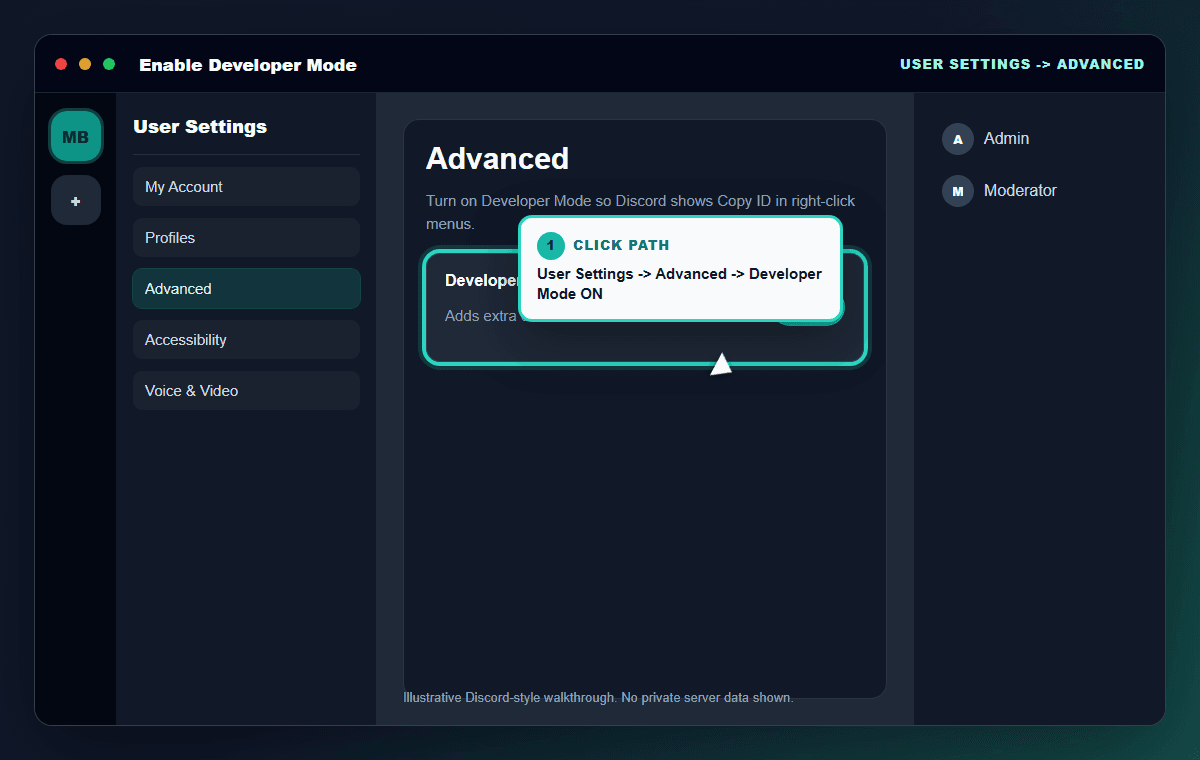
User Settings -> Advanced -> Developer Mode ON
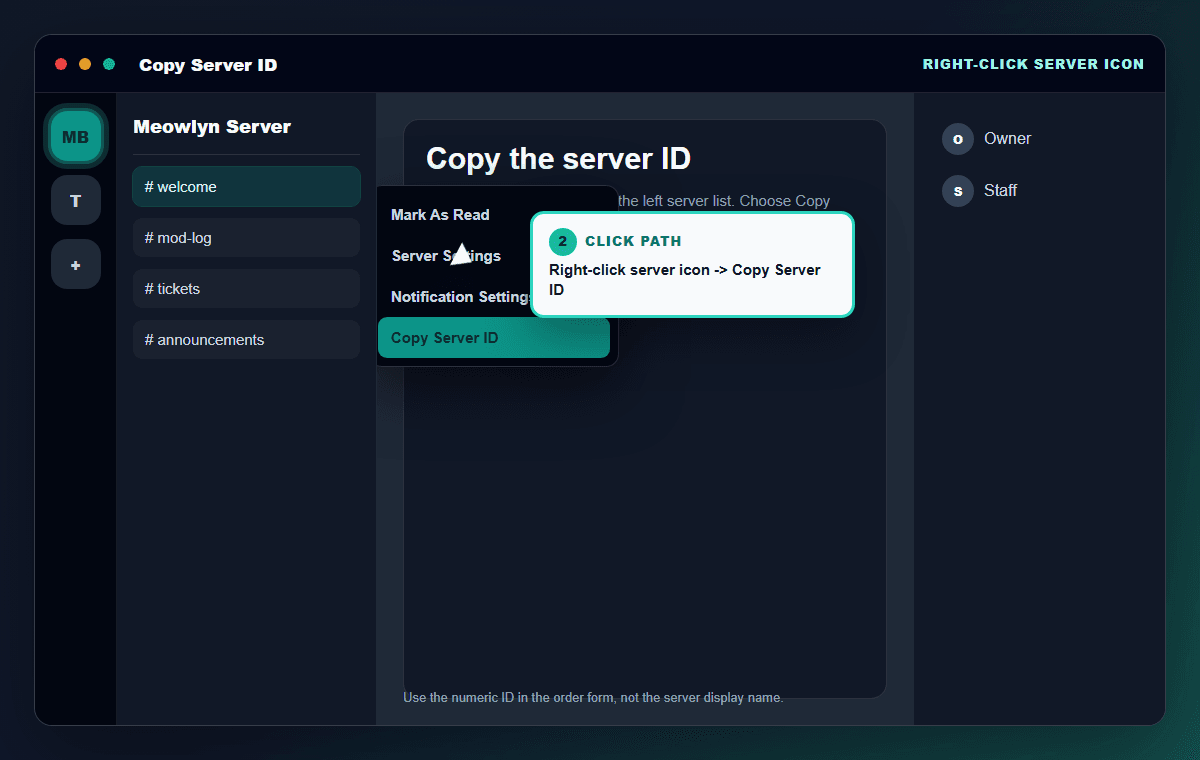
Right-click server icon -> Copy Server ID
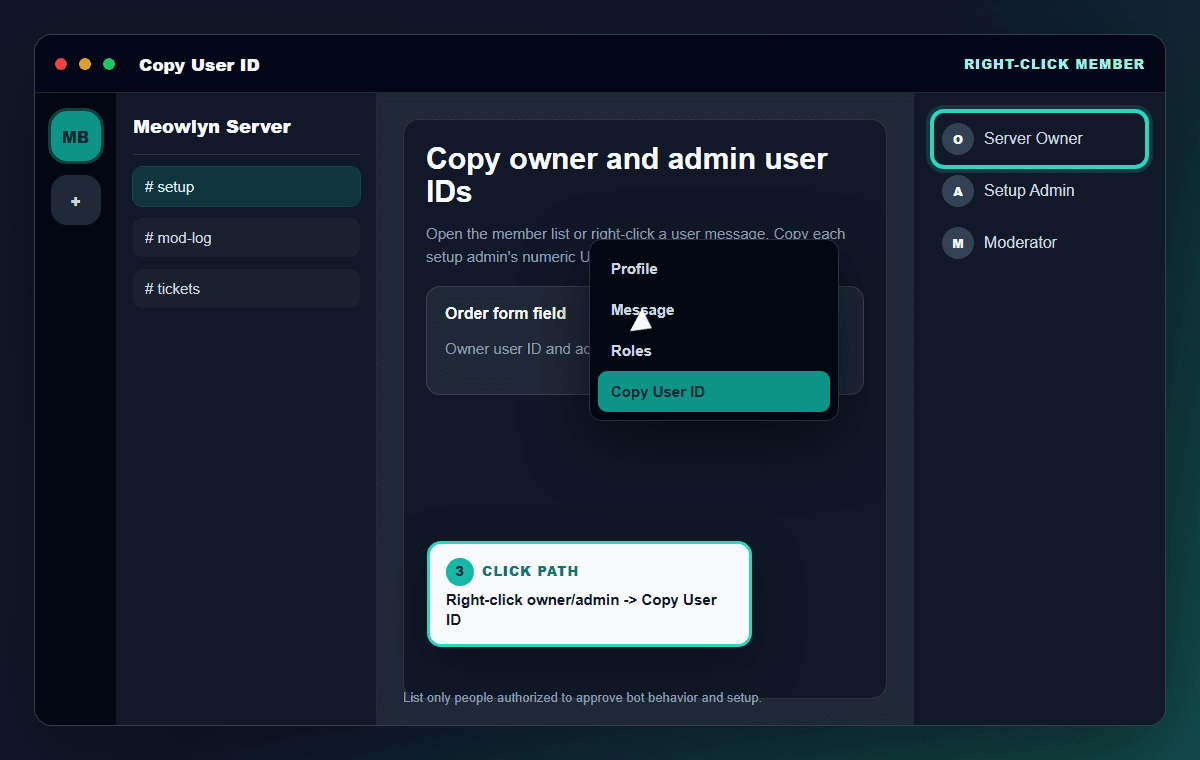
Right-click owner or admin -> Copy User ID
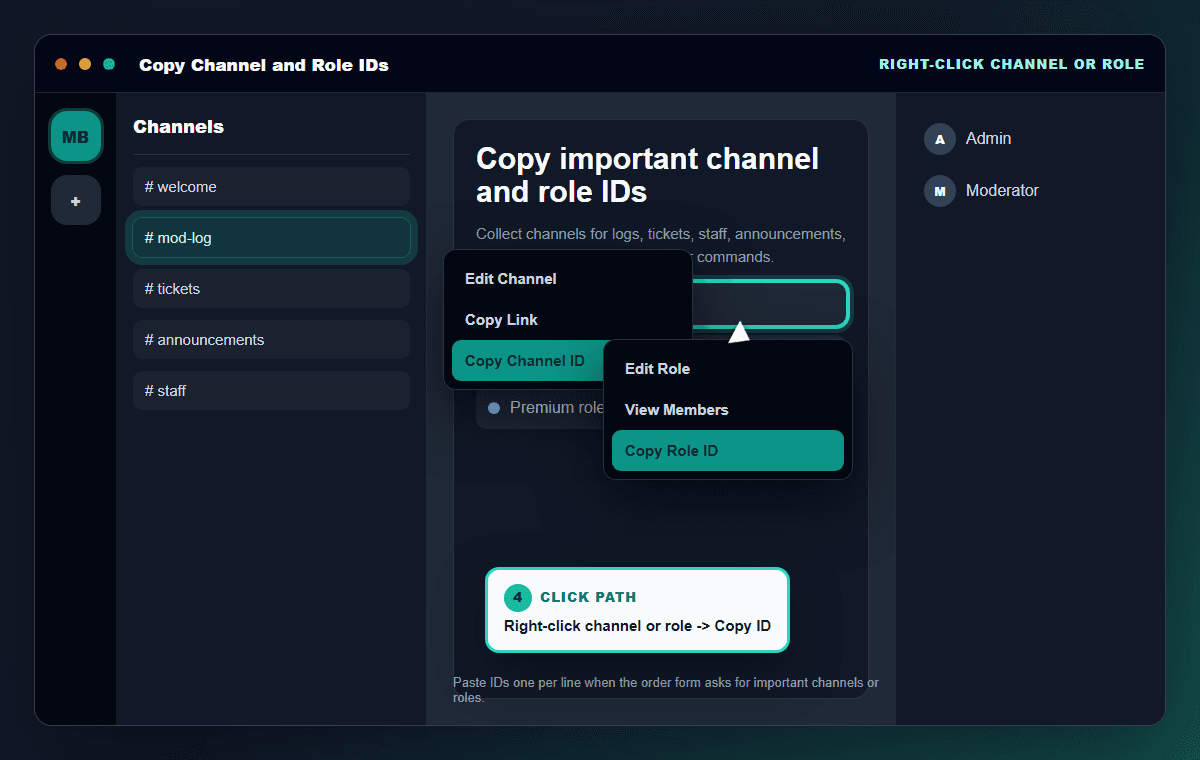
Right-click channel or role -> Copy ID
The first intake asks for project details only. If sensitive setup details are needed, we will arrange a secure handoff after the project has been reviewed.
Right-click items in Discord
Use Copy ID, not display names
Confirm you can approve bot setup